


Microsoft Teams has become the dominant collaboration tool for many organizations, and this is likely to remain the case as Microsoft continues to add features and capabilities, making it the heart of the M365 suite. However, it’s strange how one of its most powerful collaboration features, B2B collaboration with Teams Connect, is so often under utilized.
Table of Contents
B2B collaboration allows organizations to enable seamless collaboration using federated identities instead of the traditional guest accounts for external partners. This shift brings a more user-friendly experience, enhanced security, and greater compliance, all while eliminating the need to switch between tenants in the Teams client.
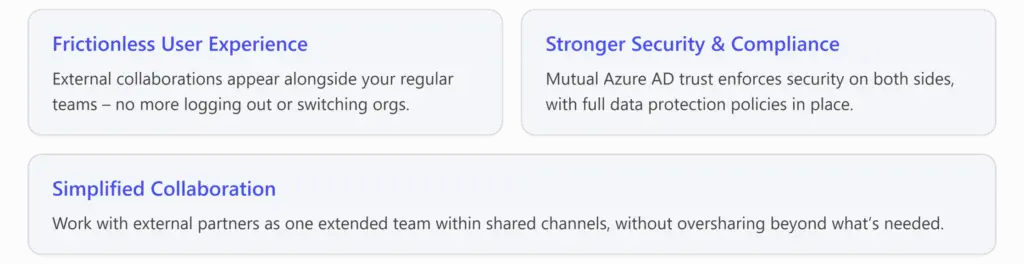
In today’s interconnected business environment, collaborating with external partners is often essential. Historically, guest accounts in Microsoft Teams were used to add external users into your organization’s Teams. While functional, this approach came with user experience challenges – notably the need to switch between tenants (organizations) in the Teams client when working with different companies. This tenant-switching is cumbersome and disrupts workflow, leading to frustration among users. Microsoft’s answer to this challenge is federated identity collaboration, enabled by Entra ID B2B Direct Connect through Teams Connect shared channels. This allows users from different organizations to collaborate seamlessly in one environment without juggling multiple accounts or logins.
This article will explain what federated identities are in the context of Teams, how they differ from guest accounts, and outline the benefits for user experience, security, and compliance. We’ll also touch on best practices for adopting this new model and how it addresses past pain points.
Understanding Key Concepts
Before diving into the benefits, let’s clarify some key terms and how these features work:
Federated Identities (Entra ID B2B Direct Connect):
In Microsoft Teams, this refers to using a user’s existing identity in their home organization to grant access to another organization’s Teams resources via a mutual trust between the two organizations’ Entra ID tenants 2. No separate account is created; instead, both organizations configure cross-tenant access policies to trust each other’s users for collaboration. This technology powers Teams Connect shared channels, allowing external users to join a channel with their own credentials and identity.
Guest Accounts (Entra ID B2B Collaboration):
A guest account is an external user account created in your organization’s Entra ID when you invite someone from outside. This user appears as a Guest in your directory and Teams. Guest access in Teams grants outsiders access to teams and channels, but requires the user to sign into your tenant (often via an emailed invitation link) and switch their Teams client into your organization’s context to participate1. In essence, the guest gets a second account in your tenant.
Tenant:
A tenant in this context is a dedicated instance of Entra ID (and Microsoft 365) for an organization. Each company has its own tenant where its users and Teams data reside. External collaboration often means a user in one tenant needs access to resources in another.
B2B Collaboration vs B2B Direct:
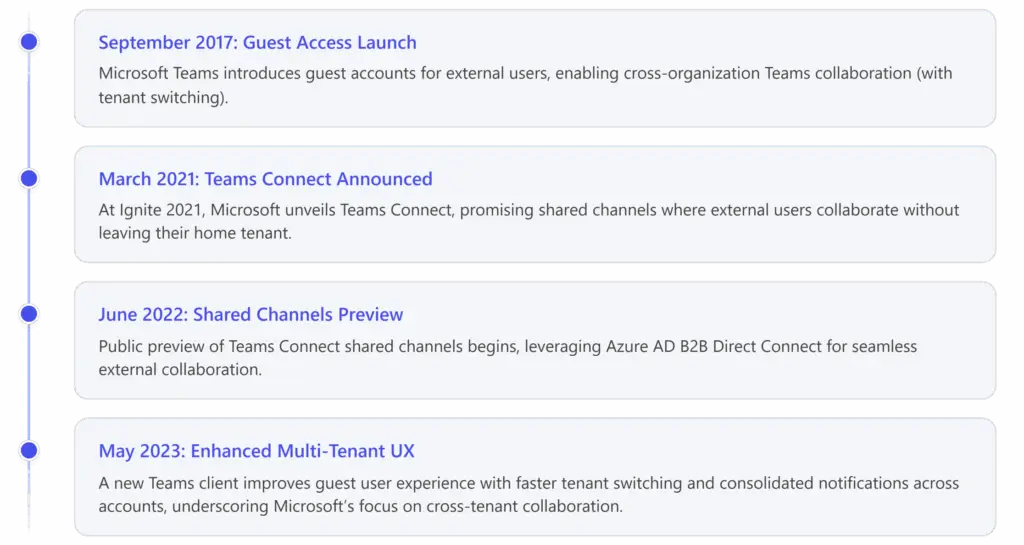
Understanding these concepts sets the stage: Guest access was the original solution for external teamwork in Teams, whereas federated identity (Teams Connect) is the more modern solution aimed at overcoming guest access limitations.
Federated Identities vs Guest Accounts: Key Differences
1. Identity and Account Management:
With guest access, an external user ends up with a separate account in each partner organization. For example, if you collaborate with five clients, you might have five different guest accounts (one in each client’s tenant). In contrast, federated identity means you use one primary account (your own organization’s) to work across environments. No new accounts need to be created in the other tenant; your existing identity is recognized via federation.
2. User Experience (Tenant Switching):
This is the most noticeable difference. Guest accounts require “tenant switching” in Teams – manually changing your session to the other organization’s tenant to see their Teams, then switching back to your home tenant for your own Teams. This context-switch is slow and inconvenient: each switch involves a re-authentication and loads a different set of Teams, chats, and files. Users often miss messages or calls in one tenant while active in another, leading to frustration. Federated identity eliminates tenant switching entirely for collaborating on shared channels. External content appears alongside your internal Teams channels in one unified view. You can receive notifications, join meetings, and contribute to external collaboration without leaving your home tenant. The experience is virtually the same as collaborating internally – external teams and channels show up in your Teams client together with a small “External” label for clarity.
3. Access Scope and Oversharing:
In the guest model, when you add a guest to a team, they typically gain access to all standard channels in that team (unless some are private). This could expose more information than necessary. Federated shared channels follow a principle of least privilege: you share only a specific channel (and its files/conversations) with externals, not the entire team. External users in a shared channel cannot see or access other channels or teams in your org beyond what’s explicitly shared to them. This fine-grained sharing reduces the risk of oversharing sensitive info.
4. Onboarding and IT Administration:
Setting up a guest is straightforward (invite via email, user accepts and joins), whereas setting up federated collaboration requires configuration by IT on both sides. Organizations must mutually configure Entra ID cross-tenant access settings to establish trust and enable shared channels. This can involve whitelisting the partner tenant, and possibly setting conditional access policies. It’s a one-time setup per partner organization. Once in place, day-to-day collaboration is smoother for users. Guests, conversely, can be invited ad-hoc without prior tenant-level agreements, which is easier for one-off invites but doesn’t scale well for long-term partnerships.
5. Recognition and Labels:
In Teams, guest users are indicated with “(Guest)” after their name. Federated external users are indicated with “(External)” labels. This helps all participants know who is from outside. It’s a subtle UI difference but important for context. From the user perspective, working in a shared channel with externals doesn’t feel much different than working with colleagues, aside from the small external tag.
The bottom line: Federated identities (shared channels) provide a more integrated and controlled way to collaborate across companies, whereas guest accounts create a separate siloed presence for each external org you interact with.
Enhancing User Experience with Federated Collaboration
One of the biggest drivers for adopting federated identity in Teams is the vastly improved user experience. Here’s how federated collaboration makes life easier for users:
No More Account Juggling
Users stay logged into one tenant (their own) and can see external collaborations right there. For example, if a marketing agency is working with a client via a shared channel, the agency team sees the client’s shared channel in their Teams list without an extra login. This means all notifications and chats come to one place, reducing the chance of missing messages. In fact, Microsoft’s new Teams client has even integrated notifications for guest accounts across tenants, but with federation, you don’t even need that workaround – it’s naturally unified.
Real-Time Collaboration, No Barriers
With guest accounts, replying to a message from an external partner required interrupting your flow: click your profile, switch organization, wait for Teams to reload, then respond, and switch back. Federated identity removes this hurdle. Users can chat, call, and meet with external colleagues in situ just as they would internally. A shared channel conversation with an external partner is accessible alongside your internal team chats, making collaboration feel continuous and uninterrupted.
Reduced Confusion
Many found the old guest swapping confusing – “Which tenant am I in right now?” was a common question, sometimes leading to posting in the wrong place. With everyone working from their home tenant, context-switch confusion is eliminated. There’s no duplicate Teams app window or constant relogin dance. Users see a single cohesive view of their workspaces.
Mobile and Desktop Productivity
On mobile devices historically you could add multiple accounts, but it was still a manual switch to view each. On desktop, people resorted to using separate browser instances or multiple profiles as a hack to monitor multiple orgs1. Federated shared channels free users from these hacks – you use your Teams as normal and external channels are just there. Particularly for power users or consultants who work with several clients, this is a huge quality-of-life improvement. It addresses the top complaint in the Teams community: “fed up of switching between Teams tenants”.
In short, federated identities make external collaboration frictionless, letting users focus on teamwork instead of tool mechanics. Microsoft’s investment in features like Teams Connect was directly in response to these user experience hurdles, which were evident from the tens of thousands of community forum discussions on tenant switching.
Security Benefits of Federated Identities
Beyond user experience, security is a critical factor when collaborating with outside parties. Federated identity approaches in Teams bring some notable security advantages over the guest account model:
Strengthened Authentication & Trust
Federated external users authenticate with their home organization’s credentials. This means each user is subject to their own company’s security policies (like multi-factor authentication, conditional access, etc.) before they can access your shared channel. The hosting organization can require that external collaborators come from a tenant that enforces strong security. For instance, you can mandate that all external participants must sign in with MFA via cross-tenant access settings. This two-fold authentication (home tenant and host tenant trust) reduces the risk of compromised credentials being used. By contrast, with a guest account, the external user’s login to your tenant might not have MFA if it wasn’t enforced, especially if they used a consumer email or weak identity to accept the invite. Federation thus leverages enterprise-grade identity security on both sides.
No Stale Accounts to Manage
Guest accounts, once created, can become security liabilities if not well managed – for example, if an external user leaves their company but their guest account remains active in your tenant, it could be misused. With federated access, access is inherently tied to the user’s active status in their home tenant. The moment their home account is disabled or removed (e.g., they leave their company), they lose access to the shared channel automatically. This reduces the risk of forgotten orphan accounts lingering in your directory.
Granular Cross-Tenant Controls
Entra ID’s cross-tenant access policies allow admins to be very specific about who from a partner organization can access what. You might allow only a certain group of users from the partner tenant into a particular shared channel and nothing else. These policies also enable auditing and monitoring of external access attempts. While similar controls exist for guest accounts (you can restrict who can invite guests or which domains are allowed), the direct connect model is built with explicit mutual governance – both organizations agree and configure the arrangement, thus sharing responsibility. It’s a more controlled handshake rather than a one-sided invitation.
Data Residency and Access Control
All content shared via federated collaboration (e.g., files in a shared channel) remains stored in the hosting organization’s tenant (SharePoint, etc.), just as with guest access. However, external users only get access to that specific data. They cannot roam around your broader SharePoint or Teams environment. This containment was mentioned earlier as an oversharing safeguard and is also a security advantage – the potential blast radius of any external account compromise is much smaller when using shared channels versus adding someone as a guest to an entire team.
It’s worth noting that guest access isn’t inherently insecure – it’s backed by Entra ID as well – but federated collaboration introduces a model where security is bolstered by the synergy of two IT departments. Each side enforces its policies on their users, and the shared channel is a controlled intersection point. Microsoft describes shared channels as providing “advanced security capabilities delivered through the Microsoft 365 cloud”, which include all the standard compliance and protection features discussed next.
Compliance and Governance Advantages
Compliance is a major consideration in inter-organizational collaboration. Organizations need to ensure that sharing data with externals doesn’t mean losing oversight of that data. With Teams’ federated identity approach, compliance controls are first-class citizens of the experience:
Full Microsoft Purview Support
Shared channels support the full range of Microsoft Purview information protection capabilities (Purview is Microsoft’s suite of compliance and data protection tools). This means features like Data Loss Prevention (DLP), sensitivity labels, eDiscovery, retention policies, and legal hold all work on content in shared channels just as they do in regular Teams channels. For example, if your company has a DLP policy that prevents sharing of credit card numbers, that policy will still apply within a shared channel with an external partner. You don’t sacrifice compliance when using federation.
Host Tenant Compliance Policies Apply
In cross-tenant shared channels, the host organization’s compliance policies govern the channel. If you share a channel from Contoso’s tenant with external users from Fabrikam’s tenant, Contoso’s compliance rules (DLP, retention, information barriers, etc.) apply to that channel’s content. This is logical since the data resides in Contoso’s environment. It ensures that having outside participants doesn’t mean outside rules – your internal compliance regime still protects your data. Similarly, any sensitivity label on the host team or site carries over to the channel, helping maintain proper data classification.
Audit Trails and eDiscovery
Activities performed by external users in shared channels are logged and auditable under your tenant (usually showing the user as an external identity). This means if you need to perform an eDiscovery search or audit for regulatory reasons, the content and actions in shared channels are included. In a guest scenario, you’d also have this logging (the guest is an Entra ID user), so both models allow auditability. The difference is with federation, you avoid proliferation of accounts to track – each external user has one identity (with an external tag) rather than potentially multiple guest accounts under different names.
External User Consent and Terms
A subtle part of compliance is ensuring external users agree to your terms of use or policies when accessing your resources. With Entra ID external identities, you can present a Terms of Use agreement that external users must accept before accessing a shared channel, similar to guest scenarios4. This ensures that compliance requirements (like NDA acknowledgments or data handling agreements) are in place even for federated users.
No Data Mix-Up via Tenant Switching
Because users aren’t constantly switching tenants, there’s less risk of someone accidentally copying or moving data from one org to another inappropriately. In the past, a consultant switching tenants might download a file from Client A and accidentally upload it in Client B’s tenant because of confusion. By keeping the collaboration within the proper channel tab in one interface, it’s clearer where data is being shared, helping maintain data separation between organizations.
In summary, federated identity via shared channels ensures that compliance officers sleep well at night: all the governance tools (DLP, monitoring, retention) remain effective. Far from making things lax, this approach keeps collaboration compliant by design – you’re extending your controlled environment to partners in a limited way, rather than sending data off into someone else’s uncontrolled space.
Challenges and Considerations
While the benefits are strong, it’s important to acknowledge potential drawbacks or limitations of the federated identity approach:
Initial Setup Effort
Unlike ad-hoc guest invites that any team owner can do in seconds, setting up a federated collaboration requires coordination between IT admins in each organization. Both must configure cross-tenant access settings and possibly update Entra ID policies. This is a one-time overhead per partner relationship, but it requires the right approvals and technical steps. For organizations that frequently collaborate with many ad-hoc partners or individuals, the setup could be a barrier. In those cases, guest access might still be used for one-off external participants especially if the other side isn’t an organization (e.g. a freelance contractor with no Entra ID tenant of their own).
Partner Adoption and Compatibility
Federated identity in Teams works best when the external partner is also using Entra ID and Teams in a compatible way. If your partner uses a different platform or doesn’t have an IT department to configure federation, you might fall back to guest accounts or other means. Additionally, both sides need to be in at least a Teams licensing tier that supports shared channels (generally all business/enterprise tiers do). If one side hasn’t enabled the feature or is disallowed by policy, it can’t be used. So there’s an element of mutual readiness required.
Feature Parity and Client Support
As of the rollout, some minor features might behave differently for external shared channel users. For example, certain apps or bots in Teams might have limitations across tenants. Microsoft has continuously improved these, and the experience is meant to be seamless, but it’s worth verifying any critical app integrations. Also, early on, not all Teams clients (like older Teams Room systems or third-party Teams clients) recognized shared channels perfectly – these gaps are closing as the feature matures.
Change Management
Users who are accustomed to the old way (guest accounts and tenant switching) might need a bit of re-education. They will see external channels in their Teams and need to understand the new labeling. IT should communicate how external collaborations will appear and how to use them properly. This is a positive change, but any change in workflow needs clarification to avoid confusion.
Overall, these considerations are manageable, especially weighed against the significant upsides. Most organizations find that for strategic, long-term B2B collaborations, investing in a federated model is well worth the initial effort.
Best Practices for Implementing Federated Collaboration
If you plan to transition from guest accounts to a federated identity approach in Teams, consider the following best practices to ensure a smooth rollout:
Identify Key External Partnerships
Start by selecting which partner organizations or clients you frequently work with and would benefit most from seamless collaboration. Focus on those where work is continuous or long-term – that’s where removing tenant switching will have the biggest impact.
Coordinate with Partner IT
Reach out to the partner’s IT team to discuss setting up Entra ID cross-tenant access for Teams. Both sides should align on the goal (e.g., “enable our teams to use shared channels without guest accounts”). Microsoft’s documentation on configuring cross-tenant access and Teams Connect can guide this process, ensuring both tenants add each other with the appropriate settings and trust levels.
Pilot with a Test Channel
Before broadly enabling it, create a test shared channel with a small group of users and external partners. Use this pilot to verify that everyone can access it from their home tenant, that files and chats work, and that compliance logs are capturing activity. This also gives a chance to iron out any permission misconfigurations.
Security & Policy Checks:
Update or review your conditional access policies for external users. For example, you might require externals to use MFA or block access from unmanaged devices for shared channels. Ensure these policies are in place in Entra ID cross-tenant settings. Also, double-check that your information protection labels and DLP policies apply to the new shared channel (they should, by default, as noted earlier).
Educate Your Users
Announce the new collaboration method to your internal users and to external partner users if possible. Let them know that going forward, they will see shared channels for projects instead of receiving guest invites. Highlight the benefits (“you’ll no longer need to switch accounts; it will all appear in your Teams”) so they’re motivated to adopt it. Provide a quick guide or FAQ—e.g., how to recognize an external shared channel, and reassure them that it’s approved and secure.
Gradual Transition
You don’t have to remove all guest accounts on day one. It might make sense to run in parallel: new projects use shared channels, while existing guest-access teams continue until they finish. For any ongoing collaboration, you can consider migrating it – perhaps create a new shared channel and move files over. But coordinate with the external folks so nothing is lost in transition. Over time, as shared channels become the norm, your reliance on guest accounts will naturally diminish.
Monitor and Refine
After implementing, keep an eye on how it’s going. Gather feedback from users. Many will likely give positive feedback about the ease of the new approach (no one misses the old tenant switching!). If there are any complaints or issues, address them with Microsoft support or through adjusting your configuration. Also monitor security logs to ensure no unexpected accesses are occurring and that your cross-tenant policies are appropriately restrictive.
By following these steps, organizations can smoothly transition to using federated identities for external collaboration. The result is a more streamlined, secure, and user-friendly B2B collaboration environment.
Real-World Adoption and Feedback
Many organizations have started embracing Teams Connect shared channels. For example, Orkla, a multinational company, has publicly discussed using Teams shared channels to collaborate efficiently with external organizations and among its own business units. This allowed them to move projects forward faster by bringing everyone into a common digital workspace without complexity. Such early adopters report that projects involving multiple parties become easier to manage when everyone can work in one space.
User feedback from the larger Teams community also underscores why this change is so welcome. A question on the Microsoft Tech Community forum about difficulties with multiple accounts in Teams garnered over 380,000 views as users sought solutions1 – a huge number that highlights how widespread the tenant-switching frustration was. Comments from community leaders phrased guest-mode tenant switching bluntly: “ain’t fun”. Now, with federated shared channels, the community sentiment is shifting. IT admins note that it “enables seamless and secure collaboration across organizational boundaries, allowing everyone to work as one extended team while staying in their own Teams environment”. In other words, what was once a pain point is turning into an advantage.
Of course, not every scenario can use shared channels – some external collaborations will still use guest accounts (or even just meeting invites for very transient interactions). But for ongoing multi-organization teamwork, the consensus is that federation is the future. As one industry observer quipped about shared channels: it’s a “simple, yet powerful” idea – instead of having to switch tenants to access information, allow that same information to be accessed in your own tenant. This simplicity should be driving more adoption.
Conclusion
Federated identity collaboration in Microsoft Teams (via shared channels) represents a major step forward in enabling secure, convenient B2B teamwork. By leveraging trusted identities across organizations, Teams can provide a frictionless user experience – gone are the days of juggling accounts or missing messages because you were in the wrong tenant. At the same time, security and compliance remain robust: organizations retain full control over their data and access, and in many ways improve their security posture by enforcing mutual trust and strong authentication.
In summary, using federated identities instead of guest accounts in Teams improves user experience, enhances security, and streamlines compliance:
- Users benefit from a unified Teams workspace with all their collaborations in one place, leading to better productivity and satisfaction.
- IT and Security teams benefit from not having to manage as many external accounts and from the ability to enforce policies across tenant boundaries, reducing risk.
- Organizations as a whole gain faster, closer collaboration with partners, which can drive business results while still protecting corporate data.
The capability to collaborate with external parties as if they were an extension of your own workforce — but without sacrificing oversight — is a significant competitive advantage. It allows companies to form tight-knit partnerships and respond swiftly in joint projects or supply chain activities. In a world where inter-company collaboration is only increasing, features like Teams’ federated identity support are becoming not just nice-to-have, but essential.
Ultimately, adopting federated identities for B2B collaboration in Teams means you can work together with anyone, without barriers. It’s about making external partnerships feel as easy as working with your own team, all while knowing that security and compliance boxes are checked in the background. If your organization hasn’t explored this capability yet, now is a great time to evaluate it – your users (and your security officers) might thank you for it.
FAQ
What you need to know
Here’s where we clear up some of the common queries we hear from customers about Microsoft Teams Direct Connect.
Direct Connect allows external users to join Teams meetings and access shared resources using their own organizational credentials—no guest accounts required. This means faster sign-in, fewer password resets, and a more seamless experience across tenants.
No. One of the biggest benefits of Direct Connect is eliminating tenant switching. Users stay in their home tenant while collaborating in another organization’s Teams environment, reducing friction and improving productivity.
Yes. External users can fully participate in Teams chats, meetings, and file sharing without limitations, provided the resource organization grants the necessary permissions. The experience feels almost identical to internal collaboration.
Security is enhanced because authentication happens in the user’s home organization, where MFA and Conditional Access policies apply. The resource organization can also enforce its own access controls, ensuring compliance without compromising user experience.
Yes. Direct Connect works seamlessly with Teams shared channels, making cross-organization collaboration even smoother. Users can access shared channels directly from their home tenant without switching contexts.
If Direct Connect isn’t set up, collaboration falls back to the traditional B2B guest account model. To unlock the full benefits—like no tenant switching and improved security—both organizations need to configure Direct Connect.
Getting Started - We Can Help
Whether you’re navigating cross-tenant complexity or rethinking your guest access strategy, PROJECT 183 is here to help you unlock seamless, secure B2B collaboration in Microsoft Teams.
✅ Need clarity on Direct Connect setup?
✅ Want to reduce friction for external users without compromising control?
✅ Looking to align your collaboration model with compliance and adoption goals?
Let’s make it happen.